See the crew along the route.
Choose a destination, invite your friends, and see each rider’s live position on the navigation map. When the group gets spread out, you can see who’s ahead and who’s still on the way.
Group Ride GPS for iPhone
Share your live location with friends on a motorcycle ride. See where everyone is and find each other again when the group gets separated.

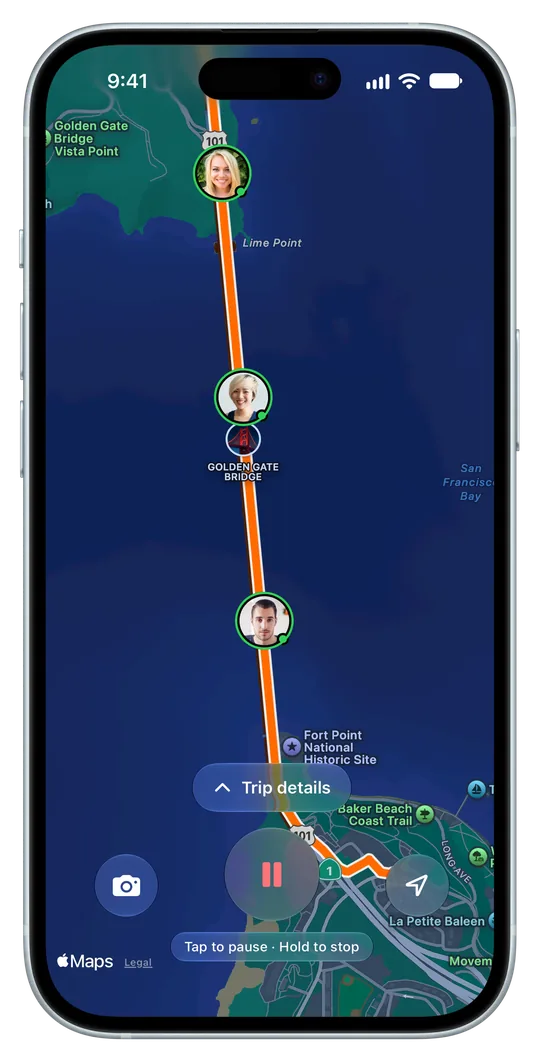
You’re watching the rider ahead to see which way they turn. Then a red light splits the group. Pick a place to regroup before you set off. If you get separated, pull over somewhere safe and check the map.
Wait for green. If the group is already out of sight, pull over somewhere safe before checking where everyone is.
Keep going until you can stop safely. Check which side of the junction your friends are on and meet them at your agreed stop.
Ride at a pace that suits you. At the next stop, check the shared map to see who’s still on their way.
Scenario 1 of 3
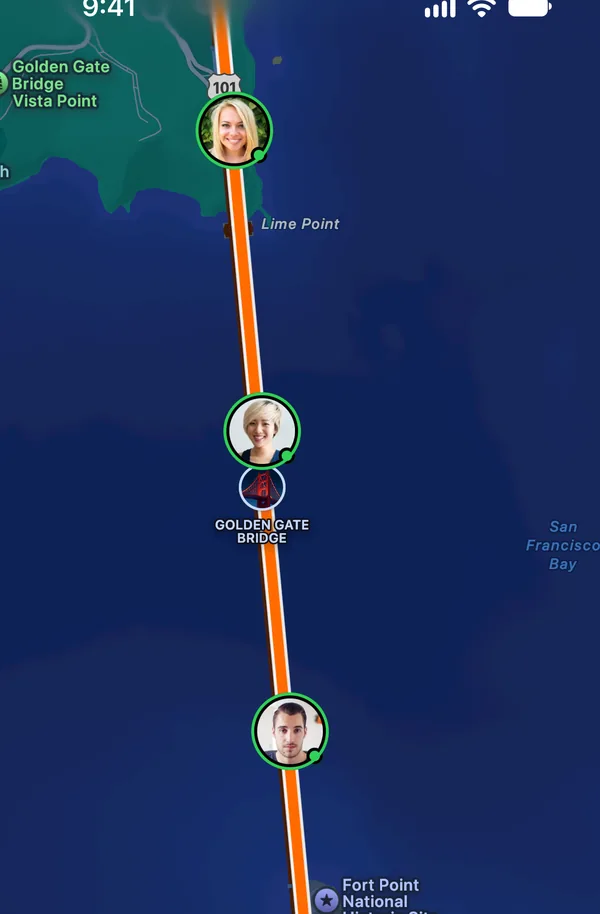
Group Ride shows the latest position each rider shares, so you can see how far apart you are before you regroup.
San Francisco Golden Gate Bridge Vista Point
Set up before you leave. Each rider needs RideMate on an iPhone with iOS 26 or later. Sign in with Apple and keep an internet connection for live updates.
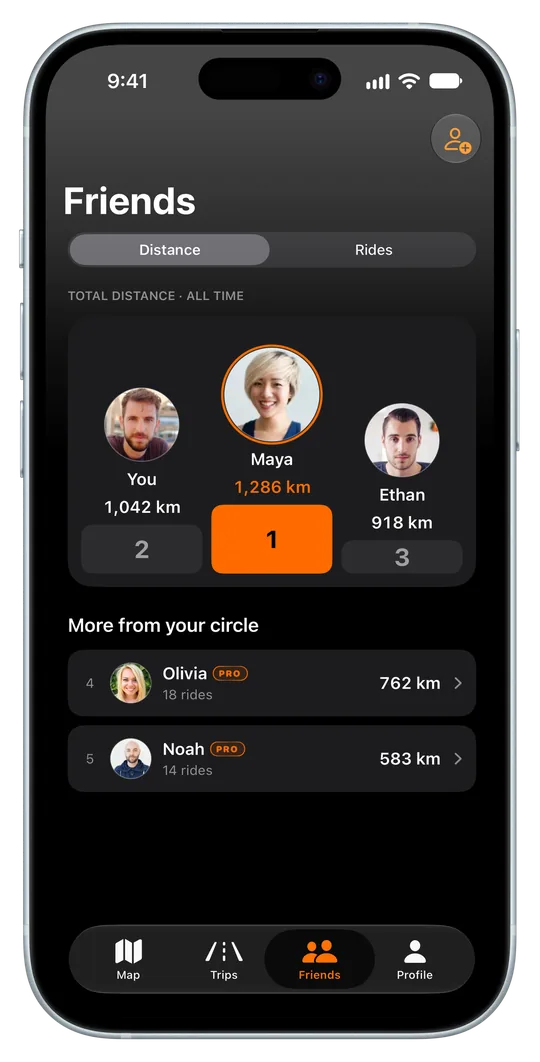
Open Friends and tap Add Friend. Enter your friend’s six-character RideMate ID and send a request. When they accept, they’ll appear in your friends list.
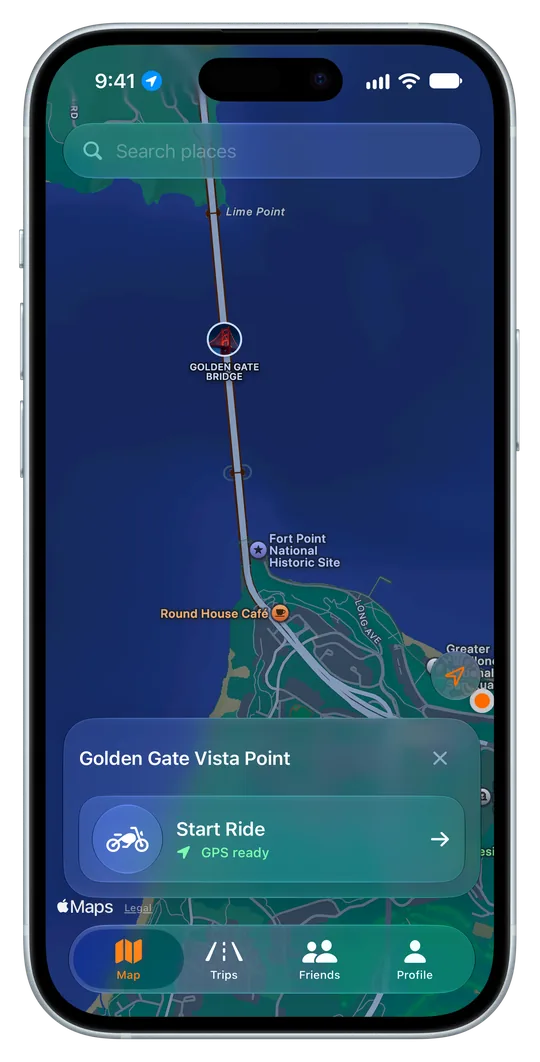
Choose a destination on Map, tap Start Ride, then choose Group Ride. Tap Invite next to each friend. They tap Join Ride. Once someone joins, the host taps Start Group Ride.
When the ride starts, riders appear on the shared map as their GPS positions come in. If RideMate prompts for access, enable Always and Precise Location in iPhone Settings.
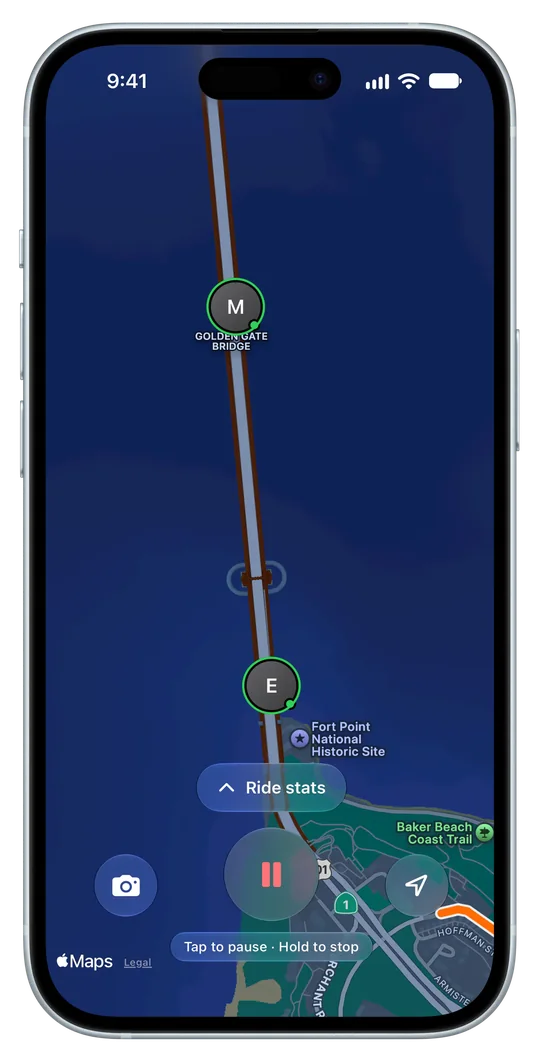
See your friends while you ride. Keep the road you took when you get home. Both happen in the same iPhone app.
Choose a destination, invite your friends, and see each rider’s live position on the navigation map. When the group gets spread out, you can see who’s ahead and who’s still on the way.
GPS recording works without Wi-Fi or mobile data, even with your iPhone locked. You can also enable Auto Detect to start recording based on movement. Live rider positions need an internet connection.
Use your saved GPS track and photos to make a Ride Card or an animated Ride Reel on your iPhone. Save it to Photos or send it to the friends who were there.
See a Ride Card and ReelLive location sharing begins when you’re riding in an active Group Ride. You can stop sharing by leaving the ride.
RideMate Privacy PolicyMembers of the Group Ride you joined can see the position you share during that ride.
When parked, hold the stop control and confirm Leave group and stop. Leaving the group ends your live location sharing with its members.
Live positions need an internet connection to update. If reception drops and a rider’s position is out of date, use the meeting point you chose before the ride.
